.png)
How to Create an Add-on
To create an inventory item/add-on for your reservation, select “Campground Settings” from the main menu, then choose “Inventory.” This will display a list of all existing store items currently available, such as firewood, bug spray, or snacks. Once you’re on this page, click on the “Create Item +” button located in the top right corner. This will open the item creation form where you can begin entering the details for your new product.
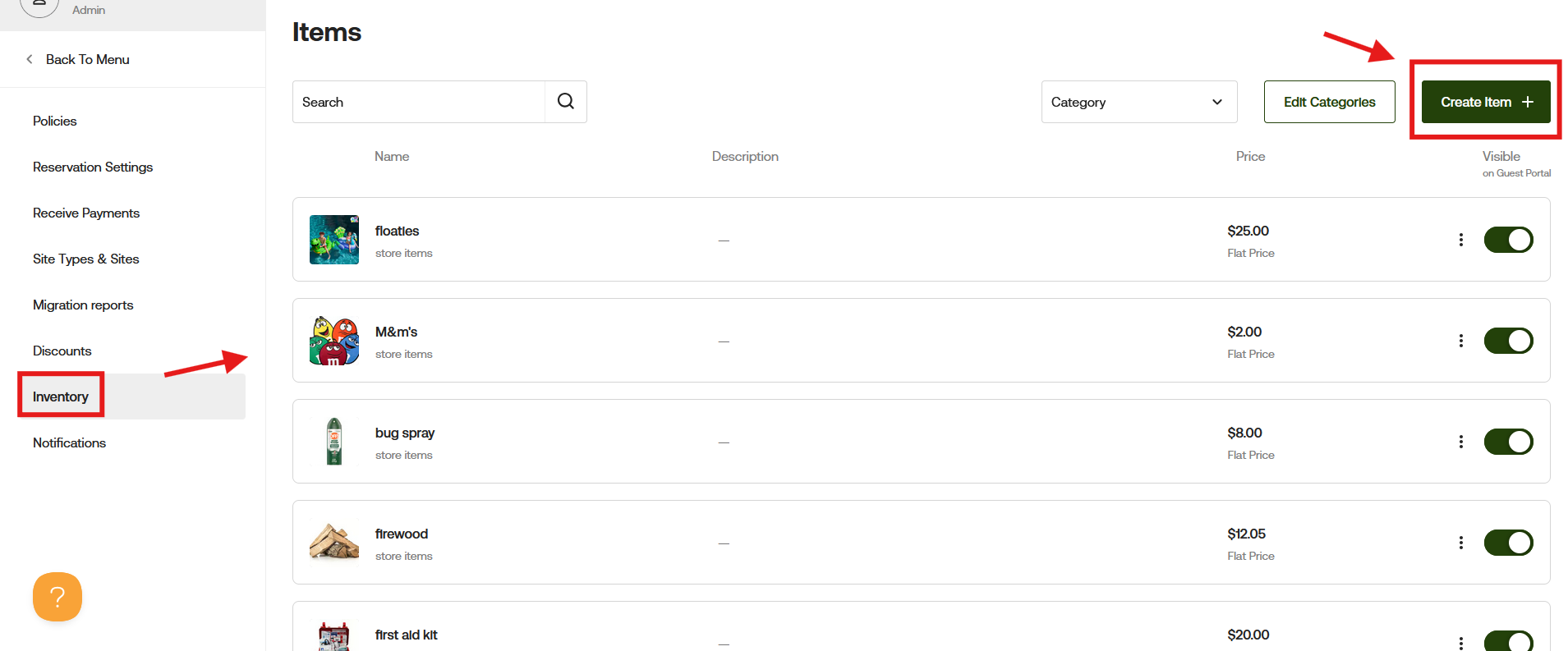
From here, you will enter the item name and price in the appropriate fields. Then choose a price type, such as a flat rate for standard items like firewood or ice, or per night, if it’s tied to a reservation. If you have categories set up, you can assign one, and you can also apply any taxes or fees if needed. Adding a description is optional, but it can help staff or guests understand the item better.
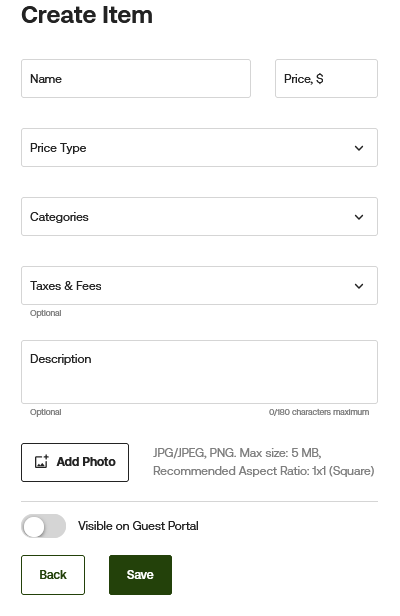
- You also have the option to upload a photo by clicking “Add Photo.” The image should be a JPG, JPEG, or PNG file, under 5 MB, and ideally square. Lastly, you can decide if the item should be visible on the Guest Portal. Turn this on if you want guests to see or purchase it online, or leave it off if it’s only for internal use.
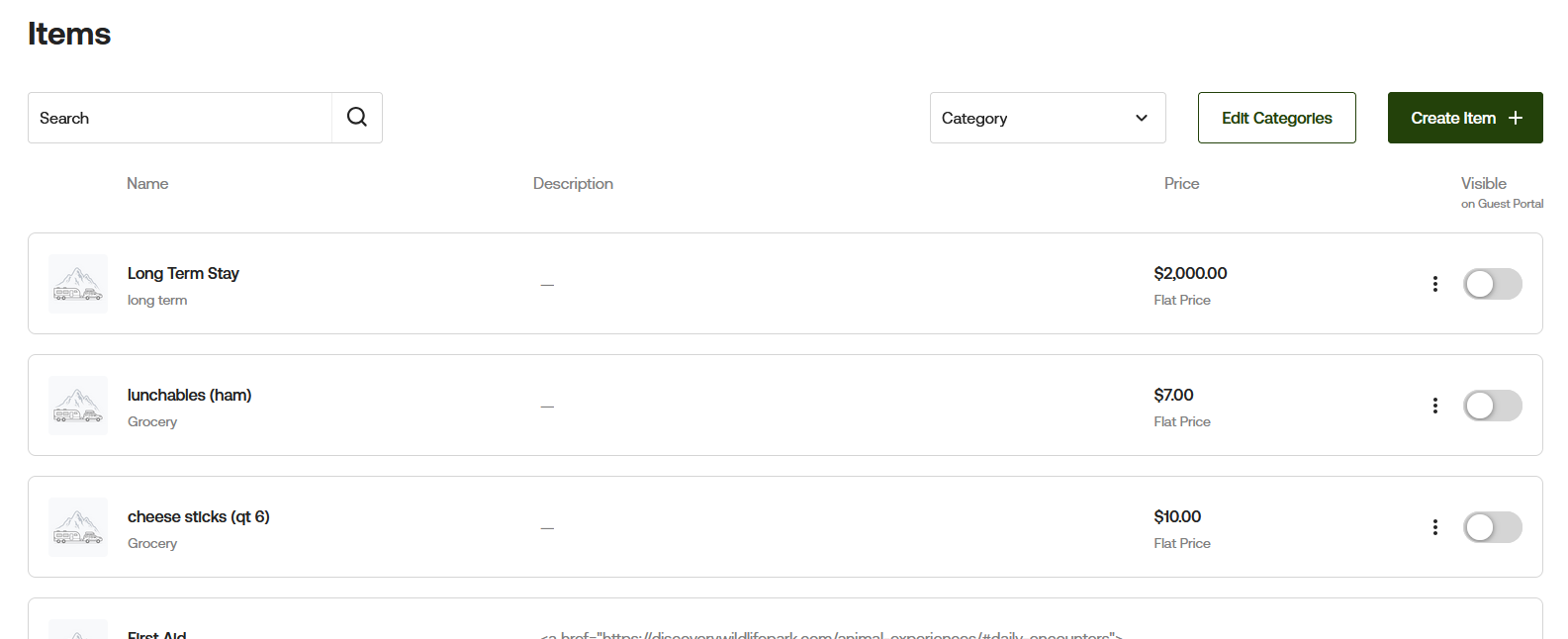
Once all the details are complete, click save at the bottom of the page. Your new item will then appear in your Inventory list with the name, price, and visibility setting displayed.
If you have any questions or want clarification, please reach out at [email protected] and we can review it with you.