.png)
Drag and Drop Dashboard Feature
The Drag and Drop Feature allows you to drag existing reservations on your dashboard to conveniently shorten and extend stays. It also allows you to quickly move reservations on your dashboard by dropping them to new dates or different site locations.
How to Shorten/Extend a Reservation on the Dashboard:
Shortening and extending stays can be done by hovering your cursor at the edge of a reservation on your dashboard. You will see the cursor change to a double sided arrow. Click and drag the arrow to shorten/lengthen the reservation as needed:

You can click and drag from both sides of the reservation.
How to Move Reservation to New Dates or Different Site:
Moving a reservation to a new date or different site location can be done by clicking on the reservation, holding the click, moving/dragging the reservation to the new date or site needed, and then releasing the click where you intend for the reservation to go:


💡Important to Note:
-
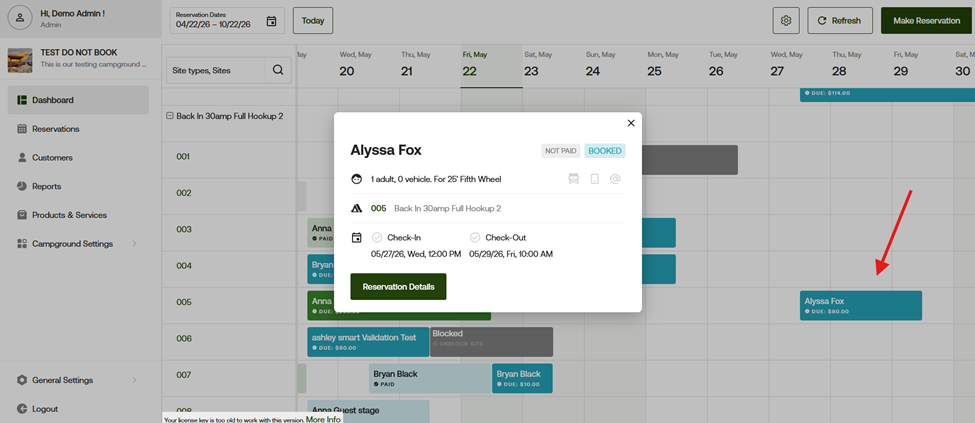
When you click on a reservation from the dashboard and immediately release the click, the Reservation Snapshot appears:
- Sites cannot be changed from the dashboard when a guest is already checked in
- Reservations can be shortened or extended when a guest is checked in
- Blocked sites cannot be moved, extended, or shortened from the dashboard
- The Confirmation Email will not be resent on reservations moved or resized on the Dashboard. If you want to send an updated Confirmation Email, you will need to edit the reservation and select the option to resend the confirmation.
For more information about the dashboard, you can read the Dashboard Overview article.
The Dashboard Colors article is also very helpful.
If you have any questions or need any assistance utilizing the drag and drop feature on the dashboard, please reach out at [email protected] and we can review it with you.